
Headcount budget envelopes
Headcount budgets for every plan year
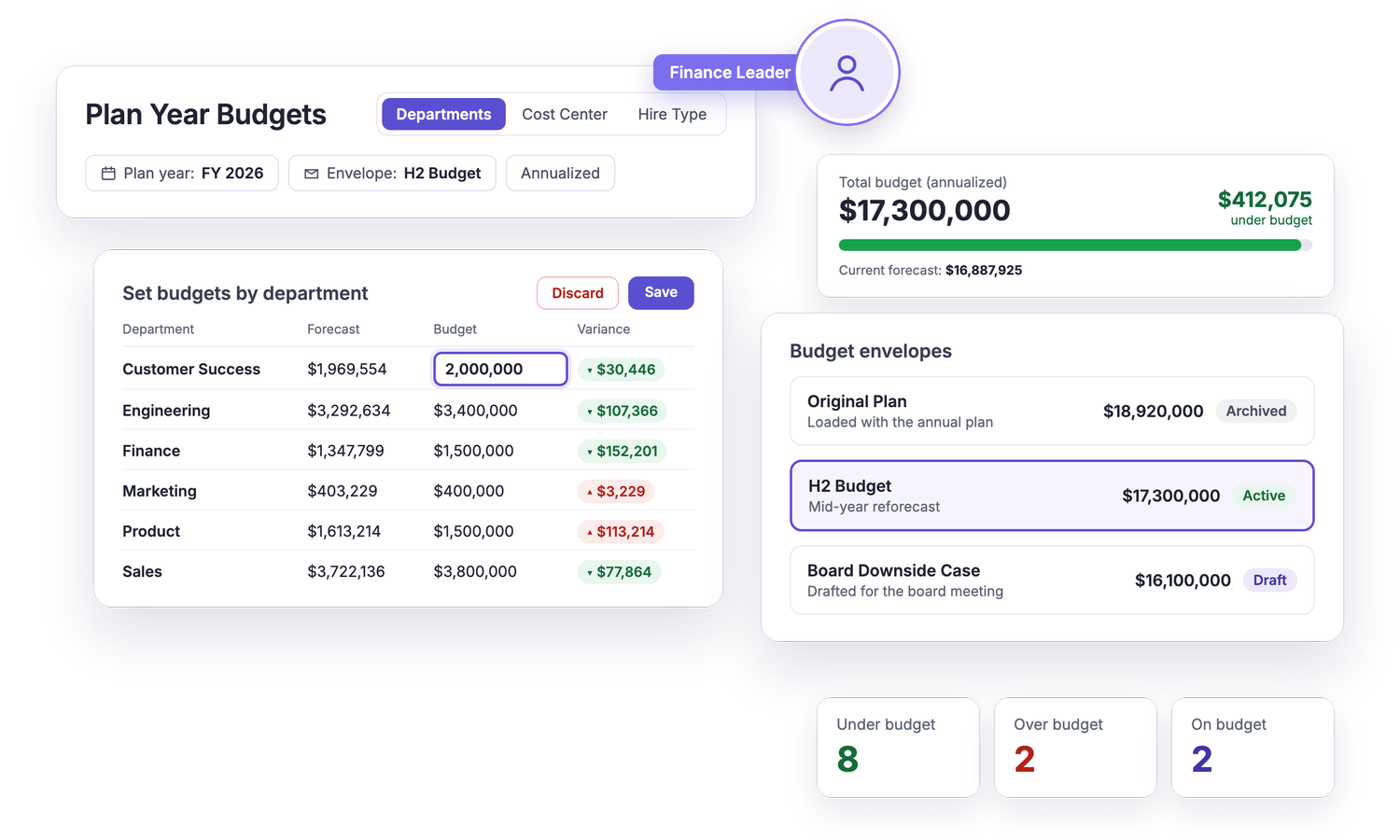
Set headcount budget targets on any team, cost center, or division. Keep as many budget envelopes as you need, switch between them, and track your forecast against the active one on the dashboard and in every approval.

Any parameter
Budget targets on every slice of your org
Budgets don’t follow one org chart. A manager can own a target for their cost center and another for the product they work on. Set budgets on each parameter you plan by, and track them side by side.
- Teams and departments: parent departments add up their sub-departments.
- Cost centers: match the way Finance already books spend.
- Any custom field: division, product, hire type, or whatever else you track.
Every budget target, held to a live forecast.
How it works
From budget target to every approval
Choose the parameters
FinancePick the plan year, and budget by team, cost center, division, or any custom field.
Set the budget targets
FinanceEnter annualized and in-year budgets for each one, plus the employee increases you expect.
Save with a reason
Anyone allowed to editEvery save asks why, so the history explains itself.
Track the forecast
Finance and budget ownersThe forecast updates as hires start, offers land, and requisitions move.
Approve against it
ApproversSee what a new requisition or change does to the budget before you approve it.
Built for FP&A
Set it, switch it, and hold the forecast to it
Track progress on the dashboard
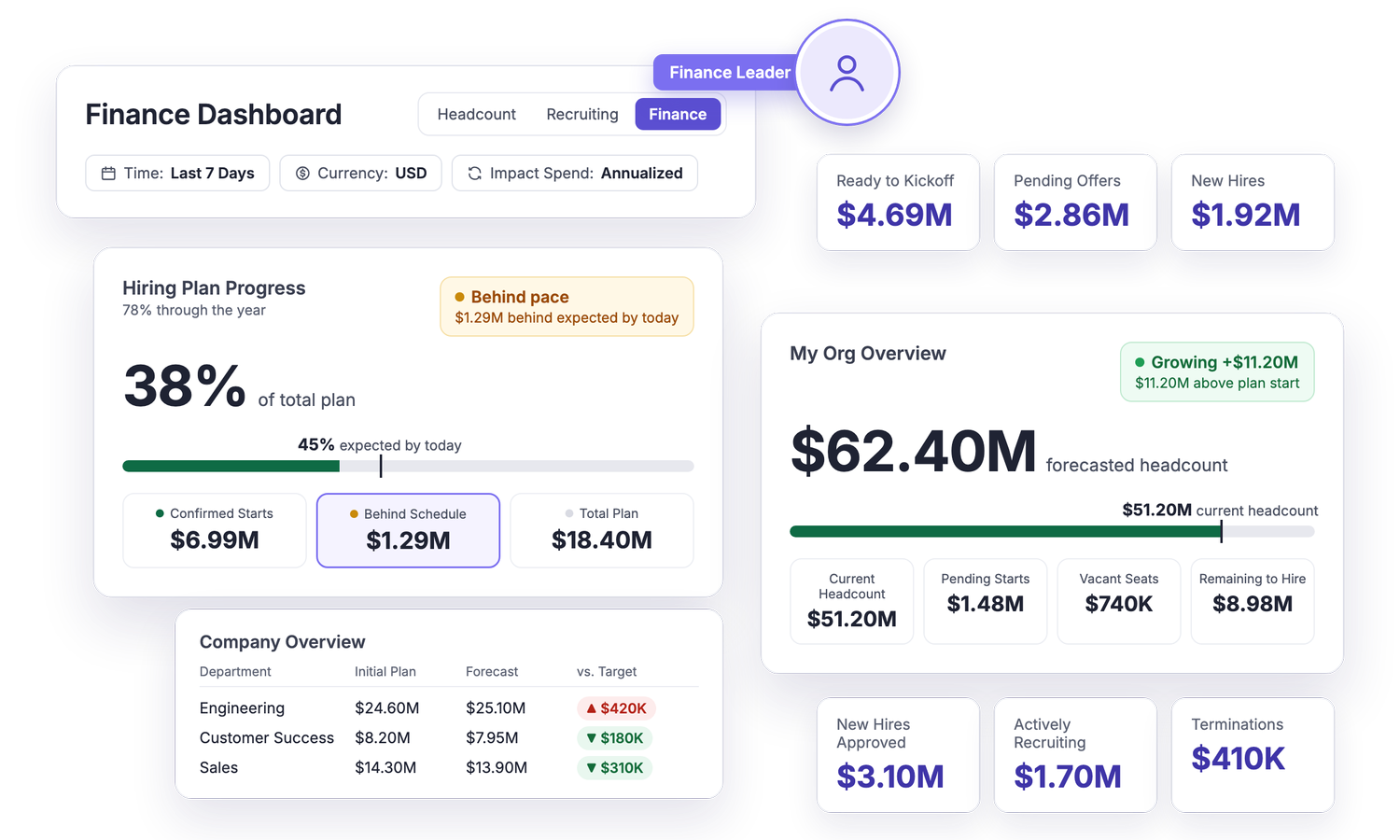
Target budget, variance from target, and expected employee increases sit next to each team’s forecast on the finance dashboard, green when under budget and red when over.
Track it in every approval
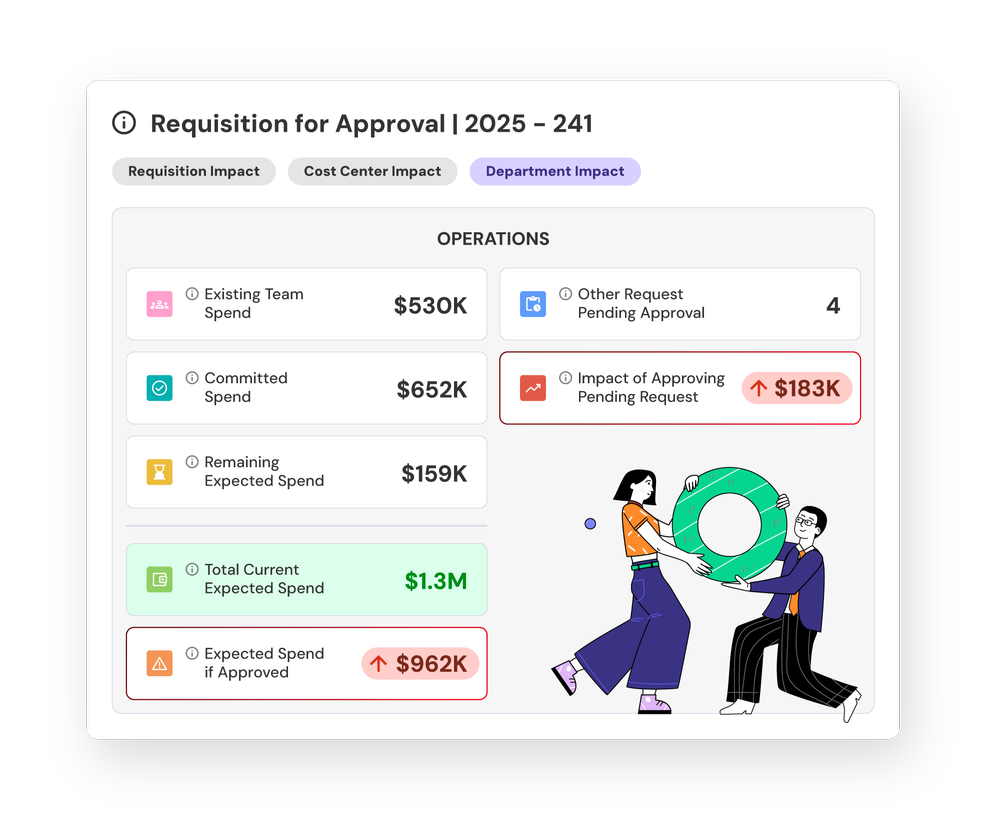
Approvers see a request’s impact on the budget for each parameter: the target, the current forecast, this request, and everything else pending.
Plan Year Budgets · FY2027
AnnualizedIn-Year
DepartmentsCost CenterRegion
Total Budget$47.70M
Current Forecast$46.95M
$750K under budget
| Department | Initial Plan | Forecast | Budget | Variance |
|---|---|---|---|---|
| Engineering | $24.60M | $25.10M | $24.80M | ▲ $300K |
| Platform | $14.20M | $14.90M | $14.40M | ▲ $500K |
| Product | $10.40M | $10.20M | $10.40M | ▼ $200K |
| Customer Success | $8.20M | $7.95M | $8.30M | ▼ $350K |
| Sales | $14.30M | $13.90M | $14.60M | ▼ $700K |
| Total | $47.10M | $46.95M | $47.70M | ▼ $750K |
Annualized and in-year budgets
Set the full-year run rate and this year’s spend as separate budgets, then switch views to track each one against its own forecast.
Budgets over time
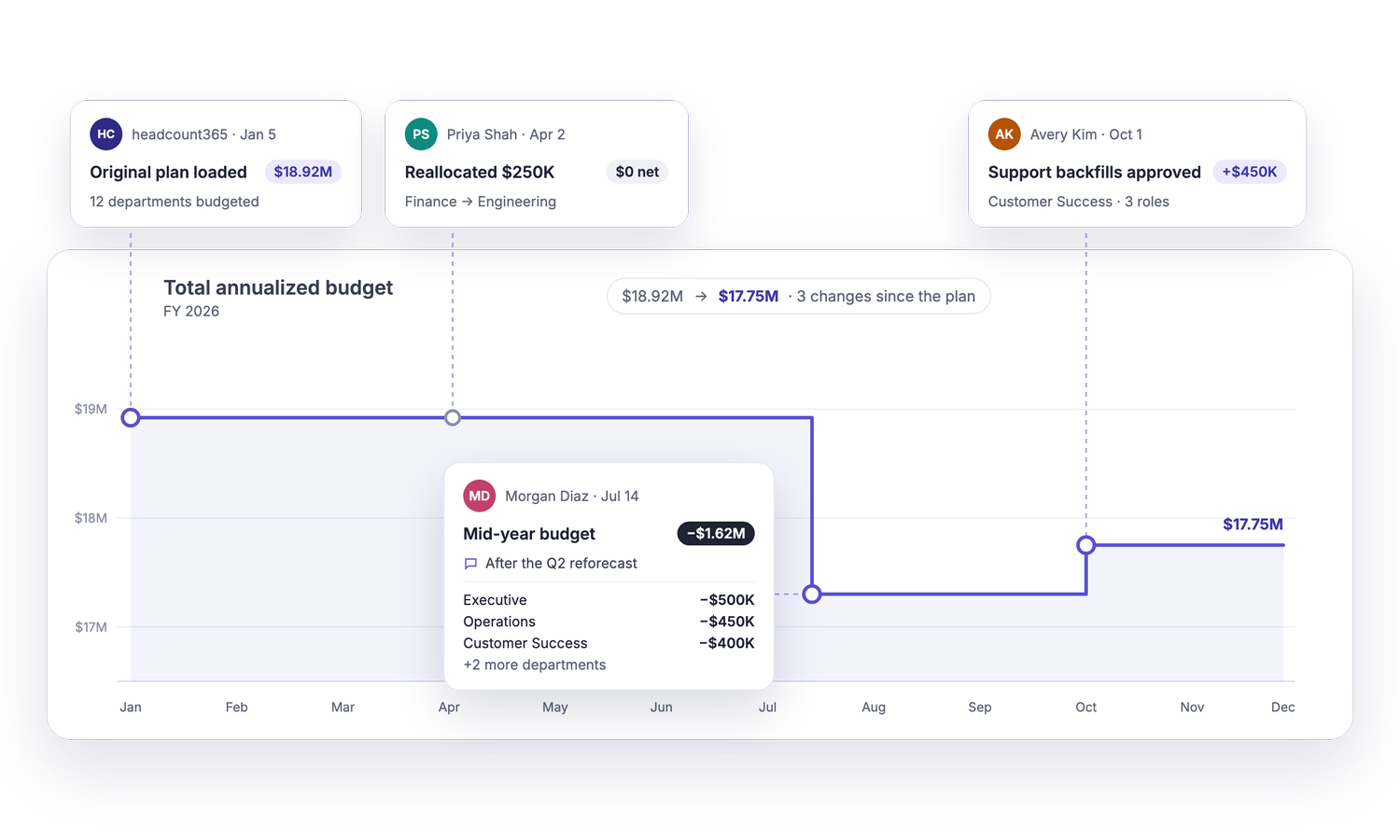
See how the total budget moved through the year, from the original plan through every reallocation, reforecast, and approved change.
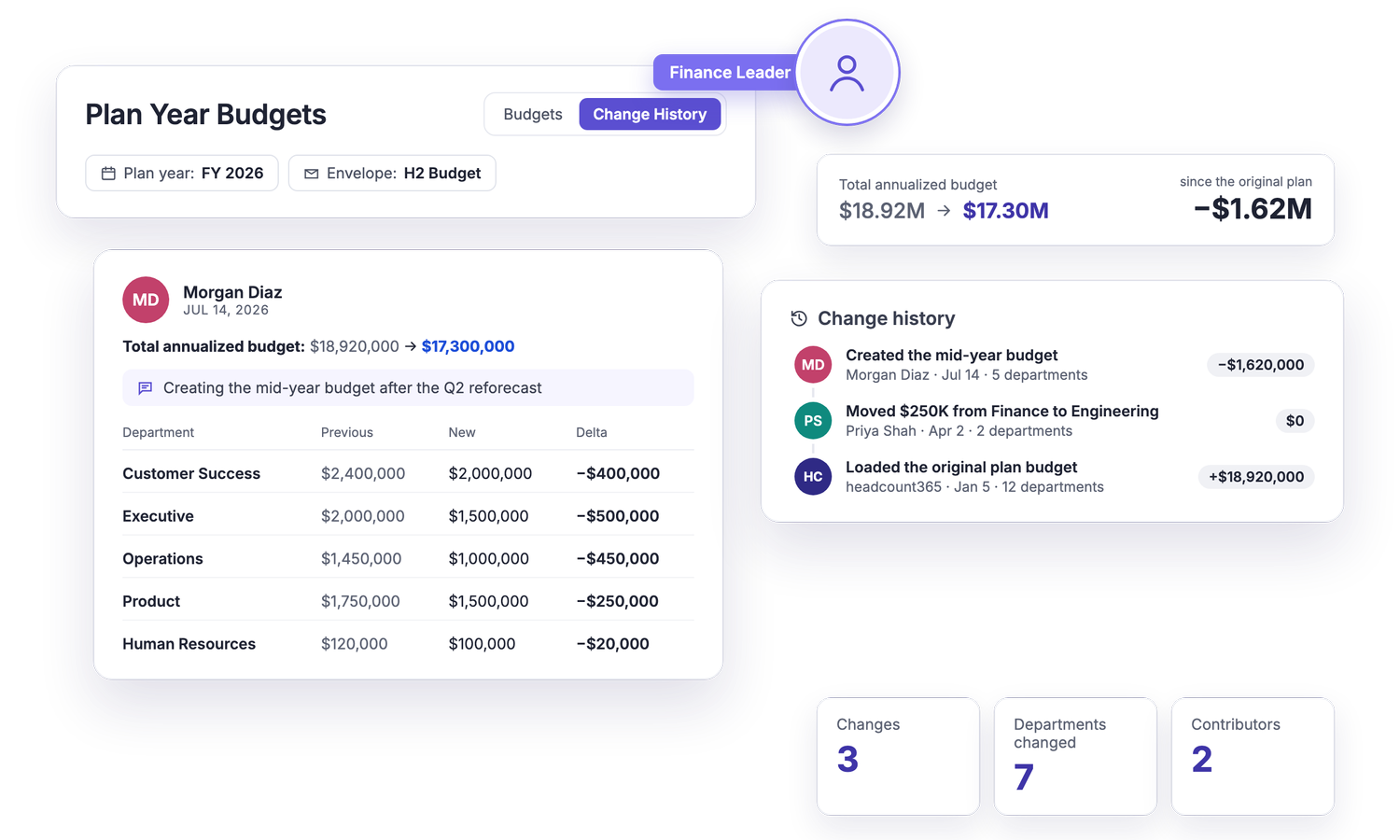
Who changed what, and why
Every change records who made it, when, the reason they gave, and the previous, new, and delta amount for each team.
Also built in
Multiple budget envelopes
Keep the original plan, a mid-year reforecast, and a board downside case side by side. One is active, and you can switch at any time.
Forecast employee increases
Budget for merit raises, promotions, and salary adjustments. They count toward the forecast until the date you set, then your HRIS takes over, so nothing is counted twice.
Budget notificationsComing soon
Get notified as budgets change and teams move against their targets.
Control who can edit
Only roles with permission to modify plan year budgets can change amounts or envelopes.
headcount365 MCP
Plan your workforce with budgets in your AI
Connect headcount365 MCP to Claude or another supported AI tool. Your budget targets sit next to the forecast, the hiring plan, and the data from your other systems, so you can test a plan against the budget before anyone opens a requisition.
- Budgets in context: targets, forecasts, open roles, and employees, linked by one ID.
- Same permissions: each person sees only what they can see in the app, compensation included.
- Next to your other tools: plan across headcount365 and the finance systems you’ve connected to your AI.
You
AI assistant
Engineering ($107K under) and Sales ($78K under) can take 4 of the 6. Product is already $113K over budget, so its 2 roles would push it further over.
Q3 workforce plan
From headcount365 and your FP&A model
You
AI assistant
Done. 4 draft requisitions are in headcount365, ready to submit for approval.
Common questions
What is a headcount budget?
A headcount budget is the amount a team can spend on its people for the plan year: current employees, open requisitions, and planned hires. In headcount365, each budget sits next to its current forecast, so you can see the variance at any time.
What is a headcount budget target?
A headcount budget target is the spending goal for one part of your org, such as a team, cost center, or division, for the plan year. headcount365 tracks each target against the live forecast for that part of the org.
What is a headcount budget envelope?
A budget envelope is one complete set of budget targets, such as the original plan, a mid-year reforecast, or a board downside case. You can keep several envelopes for a plan year and choose which one is active.
Can one manager have more than one budget?
Yes. Budgets are set on each parameter you plan by, so the same manager can have a target for their cost center and another for the product or division they work on.
How is variance from budget calculated?
Variance is the current forecast minus the budget. The forecast covers active employees and requisitions through the end of the plan year, including upcoming starts, in-progress requisitions, and planned requisitions, plus any expected employee increases still to come.
What’s the difference between annualized and in-year budgets?
The annualized budget is the full-year cost of the team at the end of the plan year. The in-year budget is what the team is expected to spend within the plan year, which depends on when people start. You set and track each one separately.
How are employee increases handled?
Enter the increases you expect for each team, such as merit raises and promotions, and the date they apply until. Until that date they’re added to the forecast; after it, the actual changes from your HRIS are reflected in salaries instead.
Set your next plan year’s budgets in headcount365
We’ll show you your teams, your forecast, and your budget targets in one view.