
Confidential headcount
Confidential headcount without the workaround
Plan, approve, and recruit for confidential roles in headcount365, alongside the rest of your hiring plan. Only the people you clear can see them, the people on each request keep ownership, and the role connects to its confidential job in your ATS.

No more workarounds
Keep confidential roles in the plan, not next to it
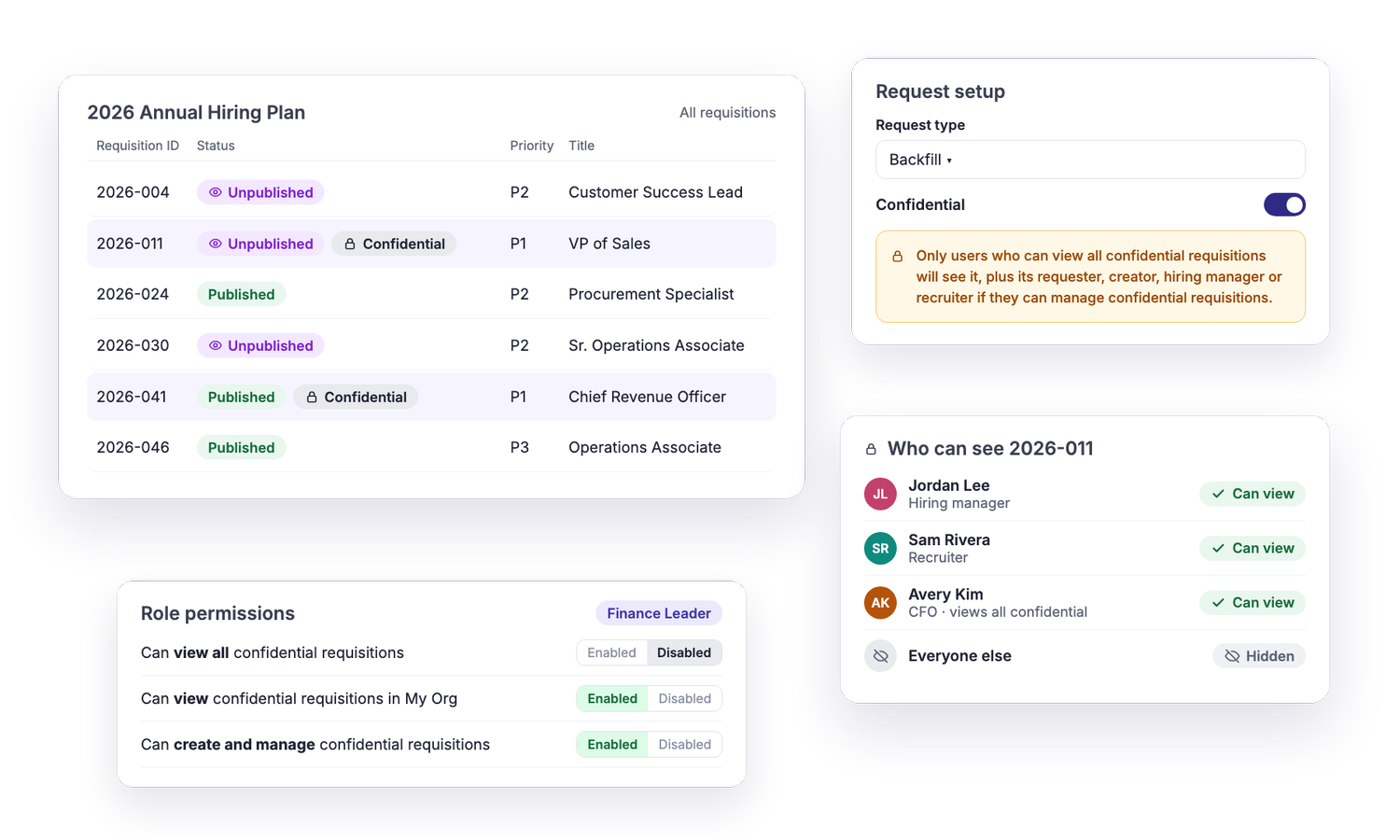
Executive replacements, stealth teams, and reorgs usually end up in a private spreadsheet, so the real plan is never complete and approvals happen over email. In headcount365, confidential roles live in the same plan, workflows, and integrations as every other role.
- In the plan: confidential roles count in the plan and totals for everyone cleared to see them.
- Out of sight: for everyone else they aren’t masked, they aren’t there, so totals can’t give them away.
- Off shared views: they never appear on the org chart or in scheduled reports, for anyone.
The people who need to know, know. Nobody else does.
Built for sensitive hiring
Ownership, visibility, and integration in one place
Role permissions · Talent Leader
Can view all confidential requisitionsCompany wide, whoever raised it
Can view confidential requisitions in My OrgOnly in the user’s own reporting line
Can create and manage confidential requisitionsPlus the ones they requested, created, or are assigned to
Clear ownership and access
Three permissions decide who sees what: everything company wide, only a hiring manager’s own reporting line, or only the roles someone requested, created, or is assigned to as hiring manager or recruiter. Broad permissions such as viewing all requisitions don’t override confidentiality.
Hiring plan
| Job title | Department | Stage | Confidential |
|---|---|---|---|
| VP, Product | Product | Confidential | Yes |
| Senior Engineer | Engineering | Approved | No |
| Head of Sales, EMEA | Sales | Confidential | Yes |
| Account Executive | Sales | Offer accepted | No |
Visible to the right people, everywhere
For people who are cleared, confidential roles carry a Confidential badge and column across the hiring plan, and messages are marked [CONFIDENTIAL]. For everyone else they’re left out of lists, dashboards, spend totals, search, notifications, and the AI assistant.
Approval process · Confidential hires
Condition
Approval chain
- 1. CFOCan view
- 2. CEOCan view
A confidential approval route
Send confidential requests to their own approval chain with a built-in Confidential condition. Email and Slack notifications only reach people who can see the request.
Push to ATS Confidential
- AshbyJob created as confidential. The setting stays in sync.
- GreenhouseLinked to the confidential job created in Greenhouse.
Connected to your ATS
In Ashby, headcount365 creates the job as confidential and keeps the setting in sync. In Greenhouse, create the job as confidential there and link the requisition to it. Either way, the role keeps its unified ID across both systems.
Also built in
New hires and backfills
Mark any new hire or backfill request as confidential when you create it, or later as plans change.
Backfills that don’t leak
When a confidential backfill holds a seat, the seat shows as being backfilled without revealing the role, so nobody opens a duplicate.
A history of every change
Changes to a role’s confidential status are kept in its history, which only cleared users can see.
AI that respects it
The headcount365 MCP applies the same rule, so each person’s AI assistant only sees the confidential roles they can.
The headcount MCPSafe duplicates
A copy of a confidential request stays confidential, and only people who can manage confidential roles can copy one.
Off the org chart
Confidential roles stay off the org chart and out of scheduled reports and digest emails, whoever is viewing.
How it works
From confidential request to confidential job
Grant access
AdminGive each role the confidential permissions it needs: company wide, My Org, or create and manage.
Set the route
AdminCreate an approval process for confidential requests, with approvers who are cleared to see them.
Request the role
Hiring manager or recruiterSwitch on Confidential when you create the request. You keep access as its requester or creator.
Approve it
Cleared approversApprovers get the request by email or Slack, marked [CONFIDENTIAL], and nobody else is notified.
Recruit for it
RecruitingPush the role to Ashby as a confidential job, or link it to the confidential job you created in Greenhouse.
Common questions
What is confidential headcount?
Confidential headcount is a planned hire or backfill that only a few people should know about, such as an executive replacement, a stealth team, or a role tied to a reorg. In headcount365 it’s a requisition marked confidential, managed in the same plan as every other role.
Who can see a confidential requisition?
People with permission to view all confidential requisitions, people with permission to view them in their own reporting line, and the request’s requester, creator, hiring manager, or recruiter if they can create and manage confidential requisitions. Nobody else sees it, including people who can view all other requisitions.
Do confidential roles count in dashboards and spend totals?
Yes, for people cleared to see them. For everyone else they’re left out completely rather than masked, so totals and counts can’t reveal them.
Can confidential requests go through approvals?
Yes. Use the built-in Confidential condition to route them to their own approval chain. Approvers need permission to see confidential requests, and notifications only go to people who can.
Which ATS platforms keep the role confidential?
In Ashby, headcount365 creates the job as confidential and keeps the setting in sync. Greenhouse doesn’t let integrations create confidential jobs, so you create the job as confidential in Greenhouse and link the requisition to it. Ask us about other ATS platforms.
Will a confidential role show up on the org chart?
No. Confidential roles never appear on the org chart, in scheduled reports, or in digest emails, whoever is viewing.
Can AI tools see confidential roles?
Only if the person using them can. The headcount365 MCP applies the same permissions as the app.
Bring your confidential roles into the plan
We’ll show you how a confidential role moves from request to approval to your ATS, visible only to the people you choose.